SmileProgress

Chapter 2

Capturing

What to shoot, how to line it up, and what happens once you press the shutter.

Back to the guide
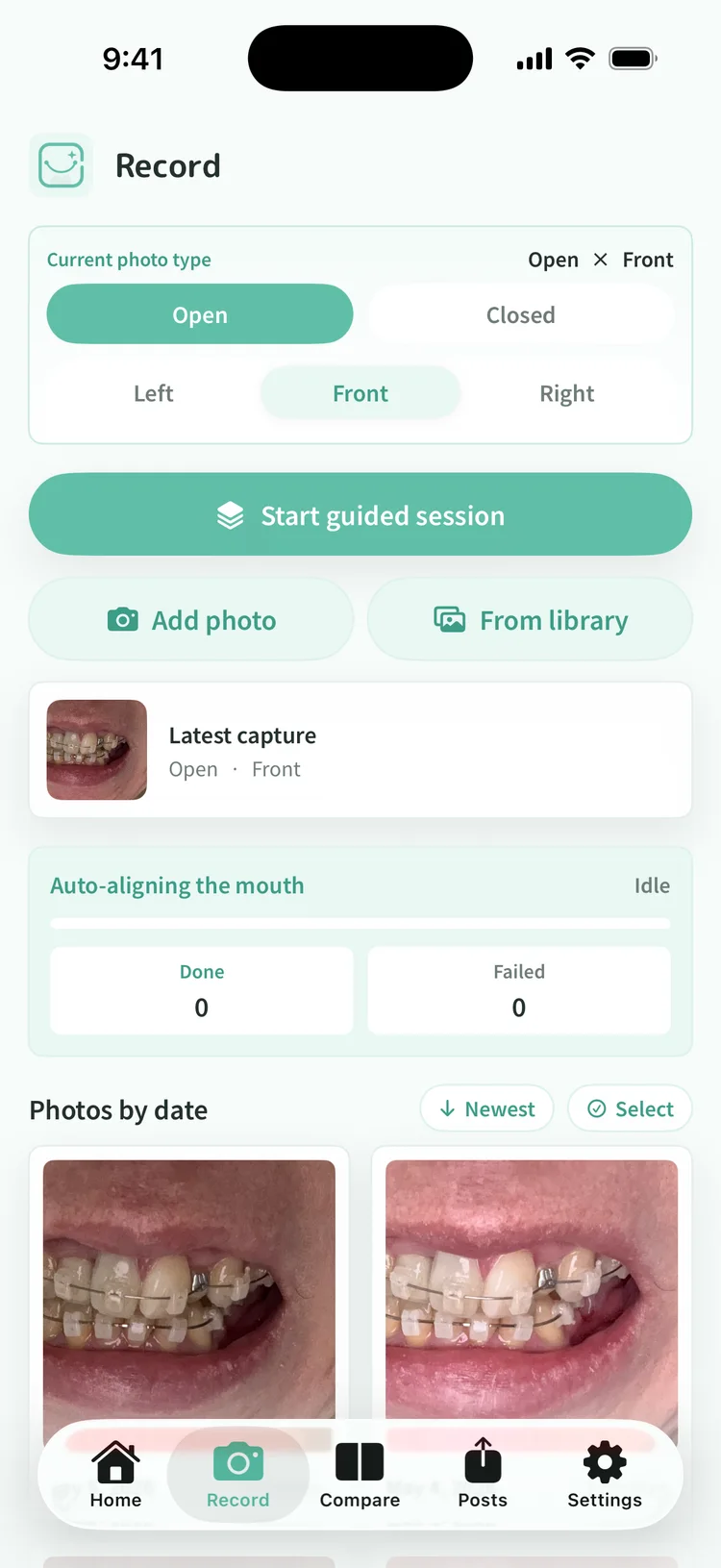
The Record tab switching between open or closed and left, front, or right

You decide which shots to take

Mouth open and mouth closed, each from the left, the front, and the right: six in total. But you do not need all six for this to be a record. Plenty of people only ever shoot the front. What matters is shooting the same type each time, not covering more of them. The buttons at the top of the Record tab switch which one you are about to take.
Facing forward
Turn to your left
Turn to your right

Just fit your face in the outline

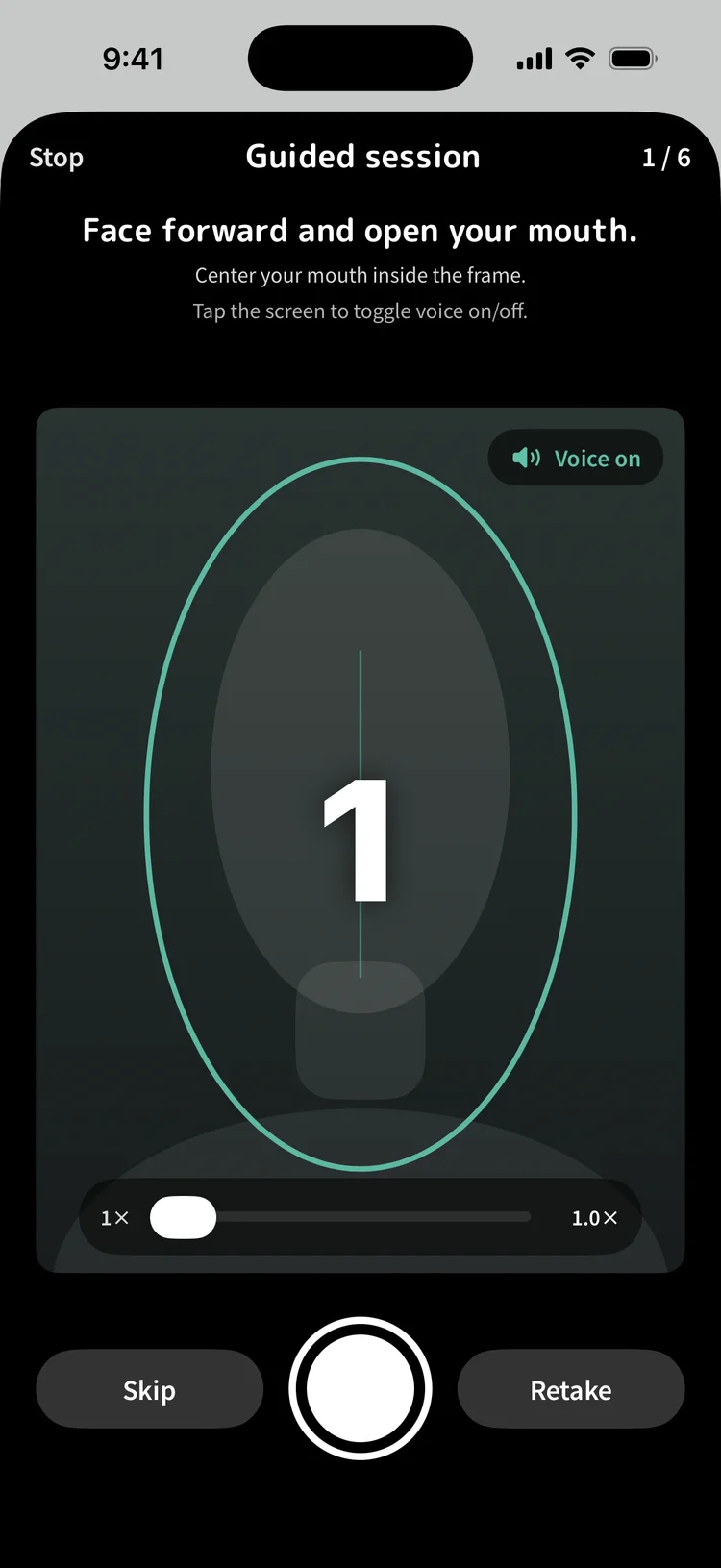
The capture screen draws an oval to fit your face into. Facing forward you get a line down the middle; turning to a side you get an arrow pointing the way to turn. Land in roughly the same spot each time and the series stays steady months later, when you finally line the photos up.

Burst mode announcing the next shot and counting down

Burst mode talks you through it

Start burst mode and each shot is announced out loud, along the lines of "face forward and open your mouth". You can keep going without watching the screen, which makes it workable in front of a bathroom mirror. Once your face is inside the frame it counts down from three and fires on its own. Until then it holds, so you do not end up with a pile of unusable photos.

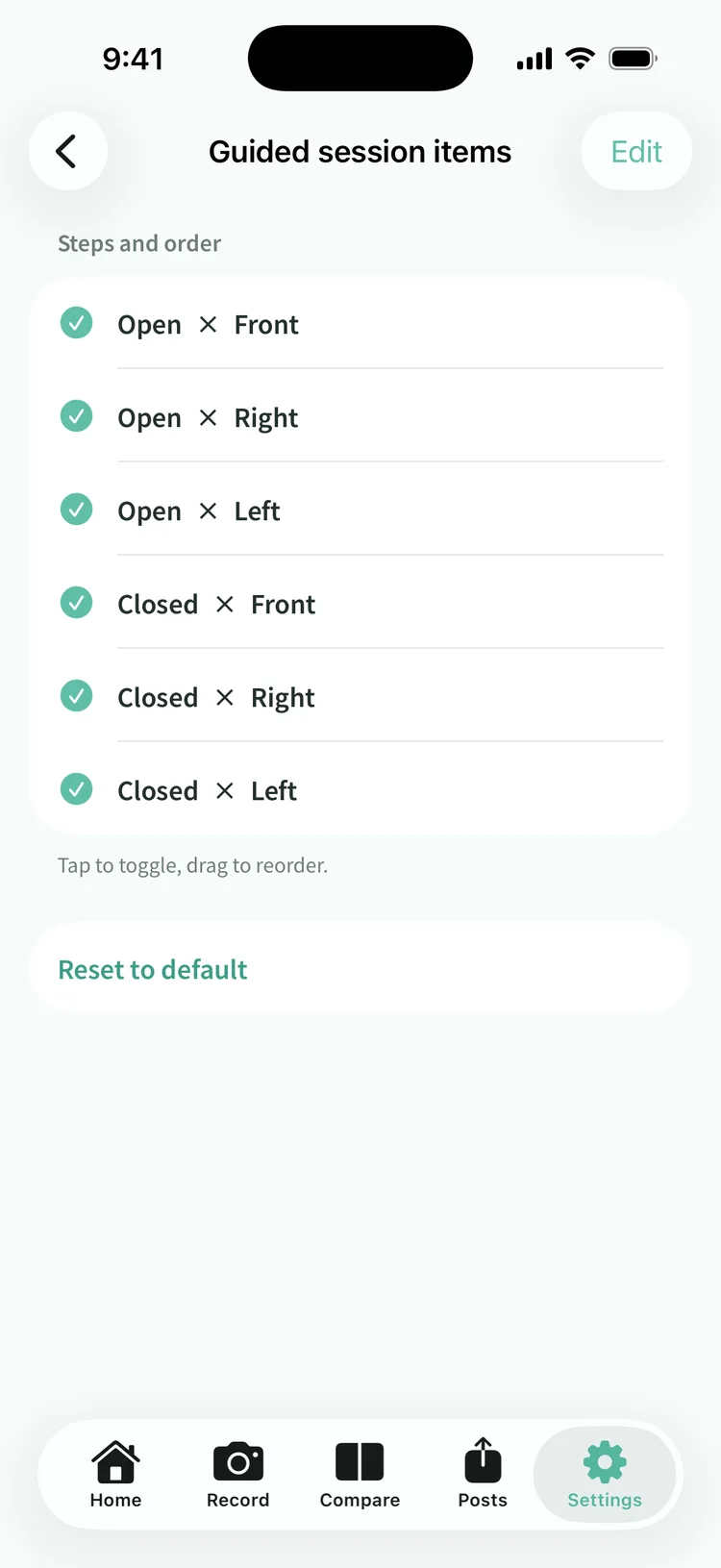
The settings screen for choosing which shots burst mode takes and in what order

Change what burst mode captures

Burst capture types in Settings lets you turn each of the six on or off, and reorder them. All six on takes six photos in one run. Narrow it to the two front shots and you are done in about twenty seconds. Trim it down during a busy stretch, and put it back when you have the room.

Nothing to do afterwards

Once you press the shutter, the app finds your mouth and crops a square around it, then matches the scale so photos line up at the same size later. Where the photo was taken and which phone took it are stripped before it is saved. Photos live inside the app, so your camera roll does not fill up with orthodontic close-ups. Unless you choose to share, nothing you capture ever leaves this iPhone.

Bring in the photos you already have

From library imports the orthodontic photos already sitting in your camera roll all at once. Dates come from the photos themselves, so the order sorts itself out. Afterwards the app tells you how many duplicated photos you already had, how many had no mouth it could find, and how many look different from the type you picked. Keep them or drop them, right there.

App Download

Turn today's change into a record.

The app brings together photo organization, comparison and the anonymization preview in a single flow.

This site uses cookies (Google Analytics) to analyze usage. Measurement happens only if you consent. Cookie Policy