SmileProgress

Chapter 3

Comparing

Choosing a span, and four ways to lay two photos out.

Back to the guide

Choose the span

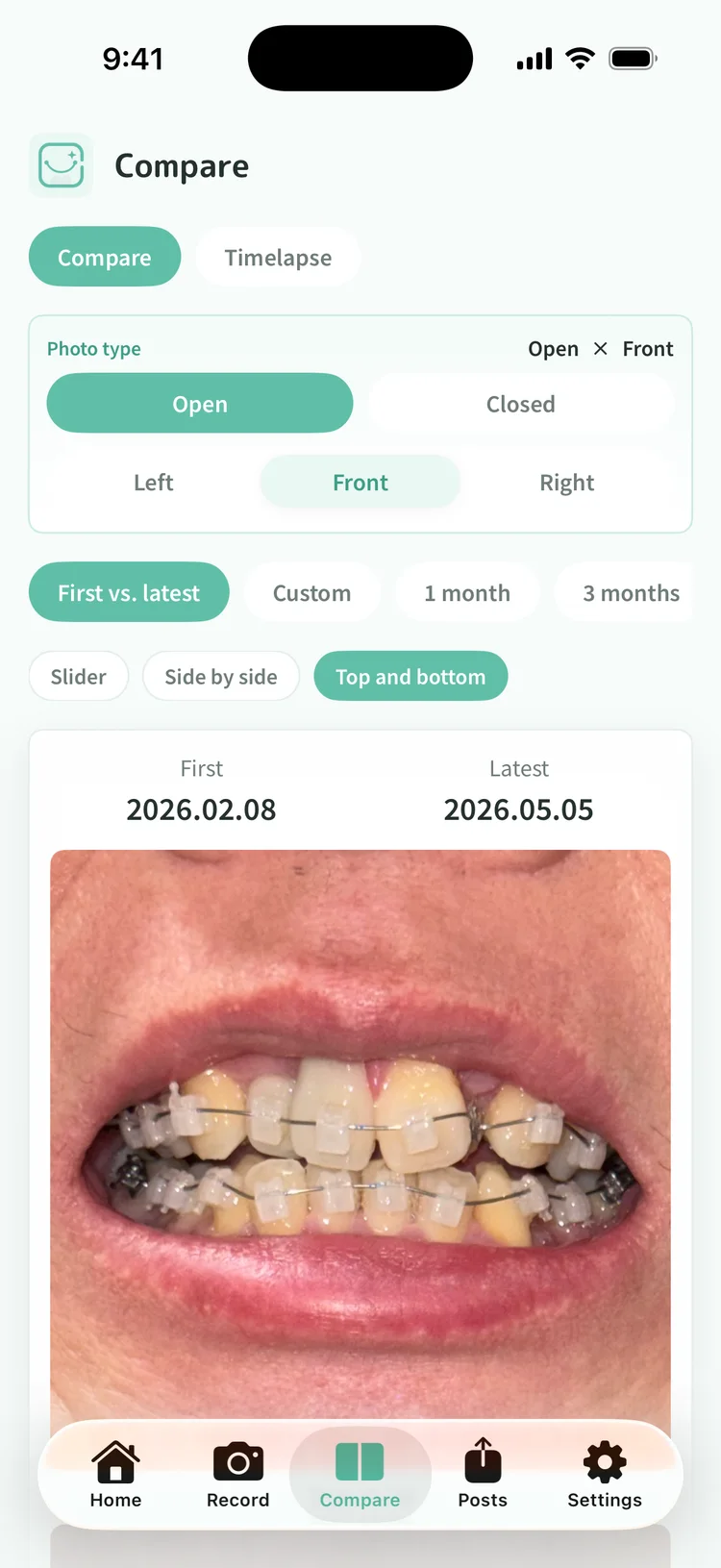
The Compare tab offers first versus latest, one month ago against today, and three months ago against today. You can also pick both photos yourself. Filtering by photo type first means you are always comparing like with like: open front against open front, closed right against closed right.
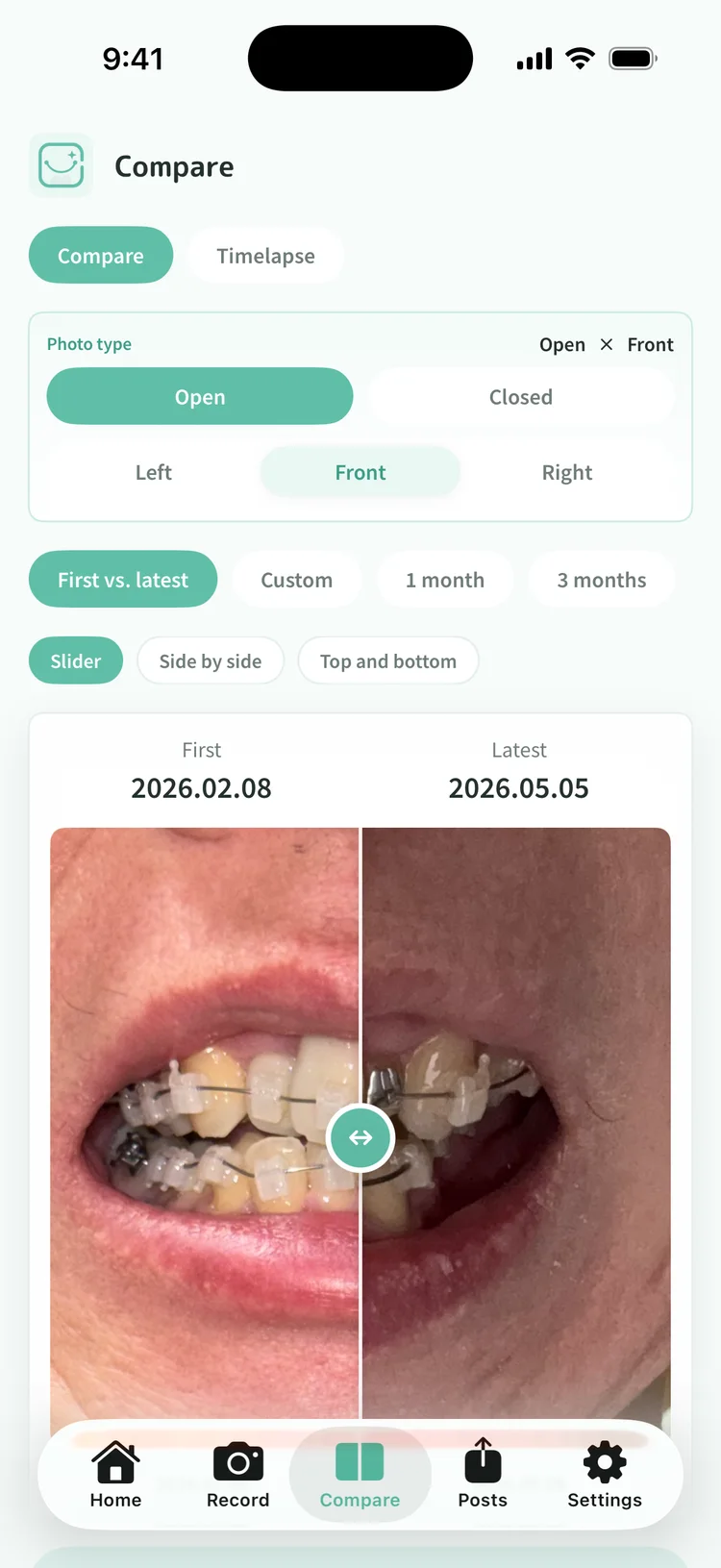
Two photos overlaid with the comparison slider

Overlay with a slider

The two photos sit on top of each other, and dragging the handle moves the seam. The closer your framing matches, the clearer the sweep reads.

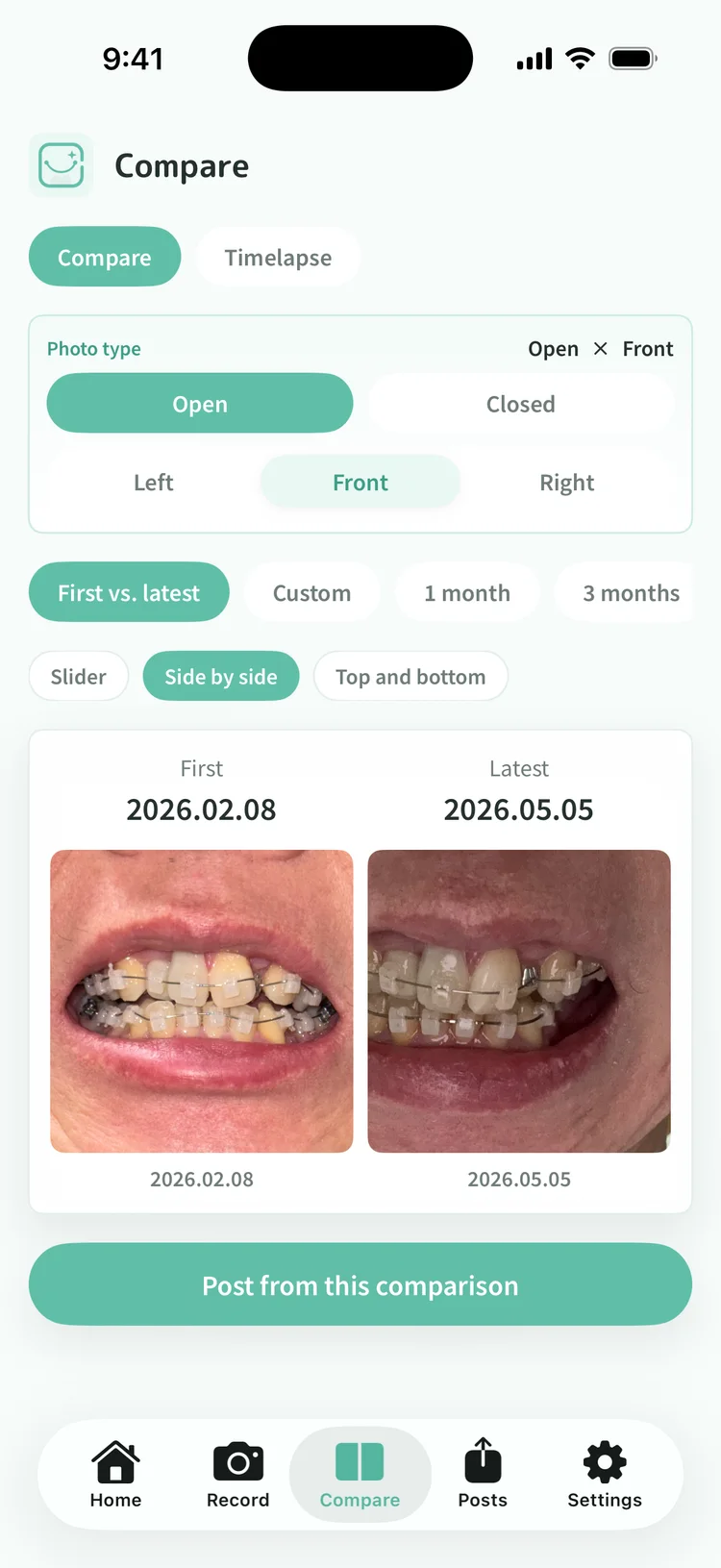
Two photos placed side by side

Side by side

Two photos next to each other. Better than the overlay when you want to take in the whole shape at once.

Two photos stacked one above the other

Stacked

One above the other, each at full width. Easier when you want to look closely at detail.

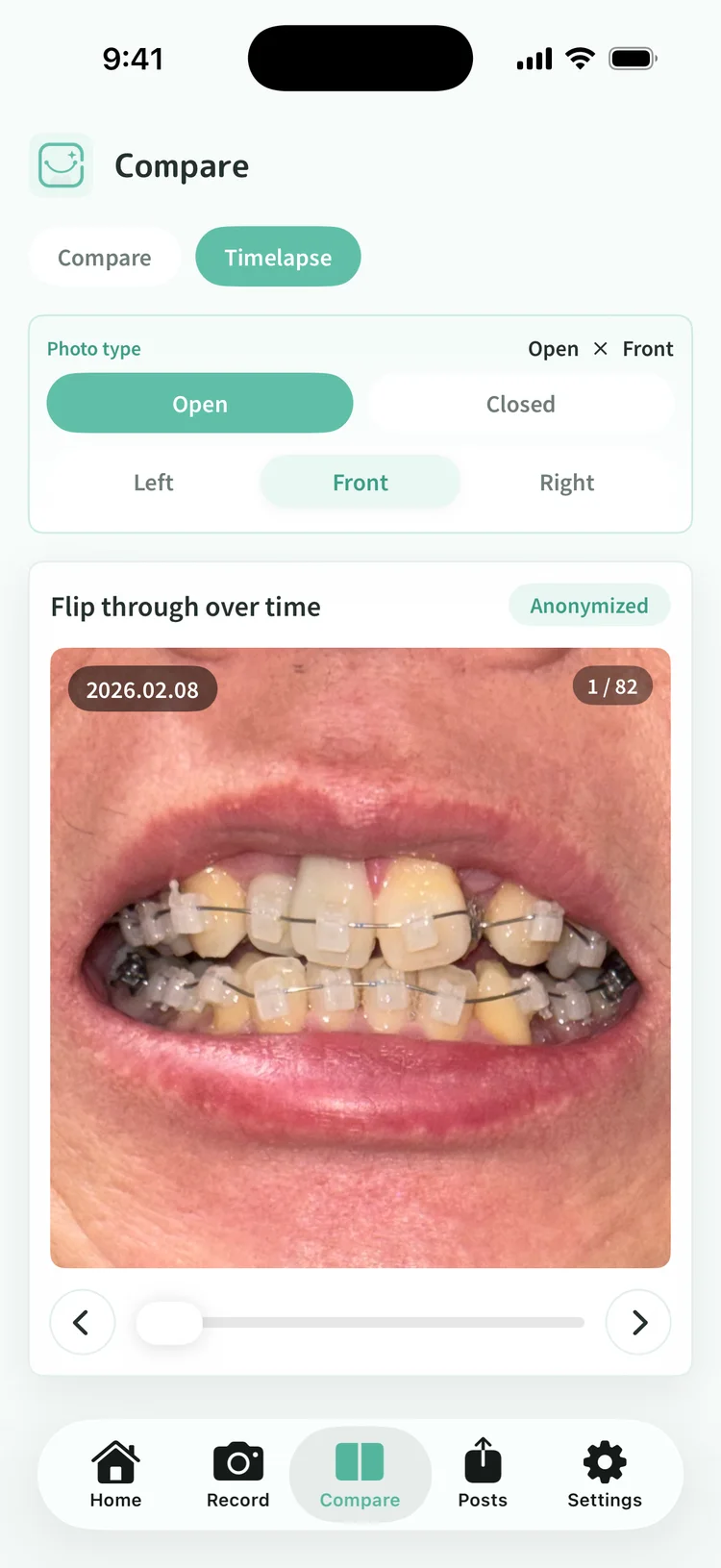
Stepping through photos of one type in time order

Flip through time

Switch to time-lapse and step through every photo of the chosen type, oldest first. The slider underneath jumps further at once. Day to day the difference is invisible, but once a few dozen photos have piled up the shape of the whole thing shows.

Notice how your framing drifts

Next to the comparison, a note lines up how well the angle, distance, and brightness match between the two photos. Use it as a hint for the next time you shoot. It says nothing about your teeth.

App Download

Turn today's change into a record.

The app brings together photo organization, comparison and the anonymization preview in a single flow.

This site uses cookies (Google Analytics) to analyze usage. Measurement happens only if you consent. Cookie Policy