Photos live on this iPhone
Everything you capture is stored inside the app. We never hold it. The one exception is a post you deliberately publish, and even that is the anonymized crop of your mouth.
Chapter 5
Where your photos live, and what to do when you change phones.
Back to the guideEverything you capture is stored inside the app. We never hold it. The one exception is a post you deliberately publish, and even that is the anonymized crop of your mouth.
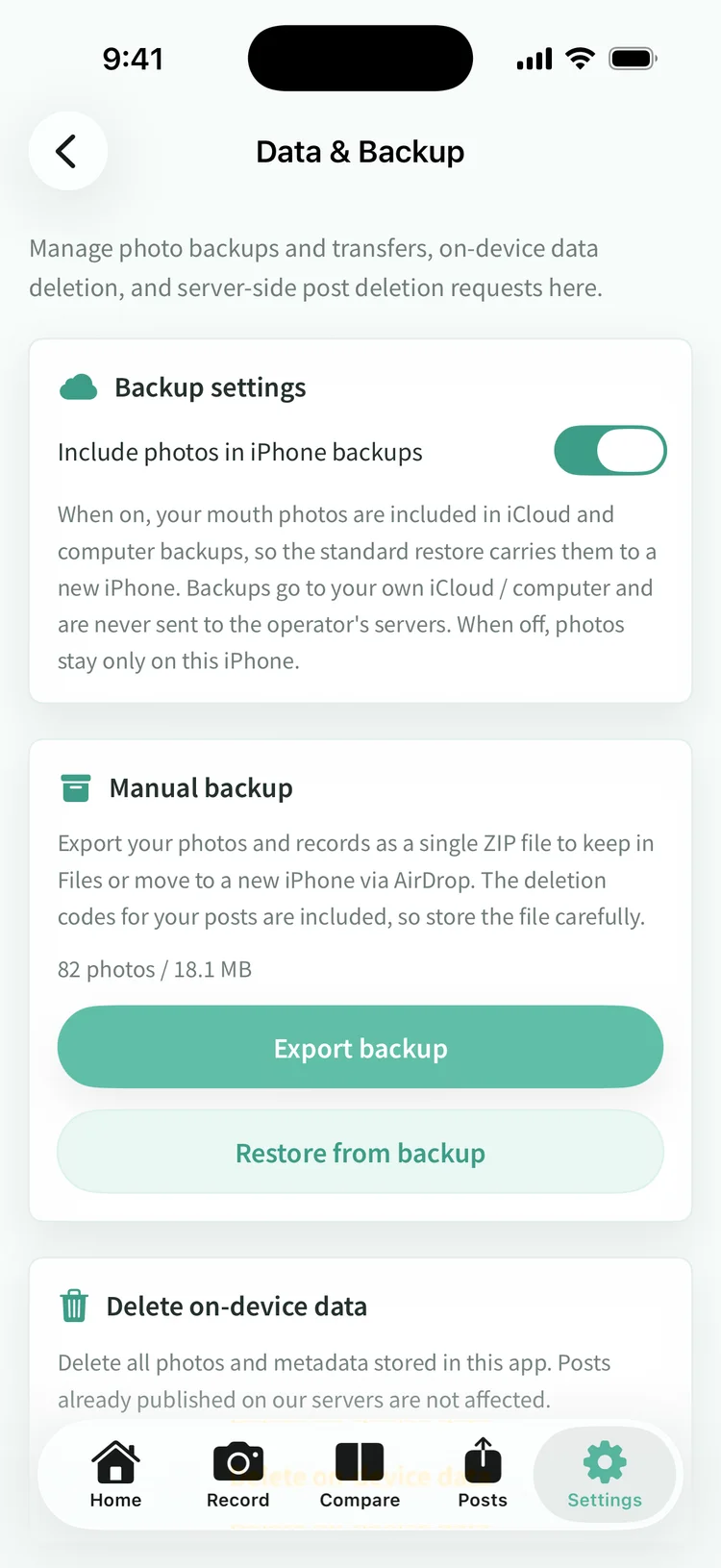
Data and backup in Settings lets you decide whether photos are part of your iPhone backup. Turned on, they ride along in your iCloud or computer backup and come back with a normal restore on a new phone. That copy sits in your own iCloud or on your own computer, and we never see inside it.
Your photos and records can be written out as a single ZIP file, which you can keep in Files or hand to a new iPhone over AirDrop. The delete codes for your posts are included, so keep the file somewhere safe.
If the backup toggle was on, restore your new iPhone as usual and open the app. The photos are there. If it was off, or you would rather be certain, export a ZIP first and choose restore on the new device. Photos you already have are not duplicated.
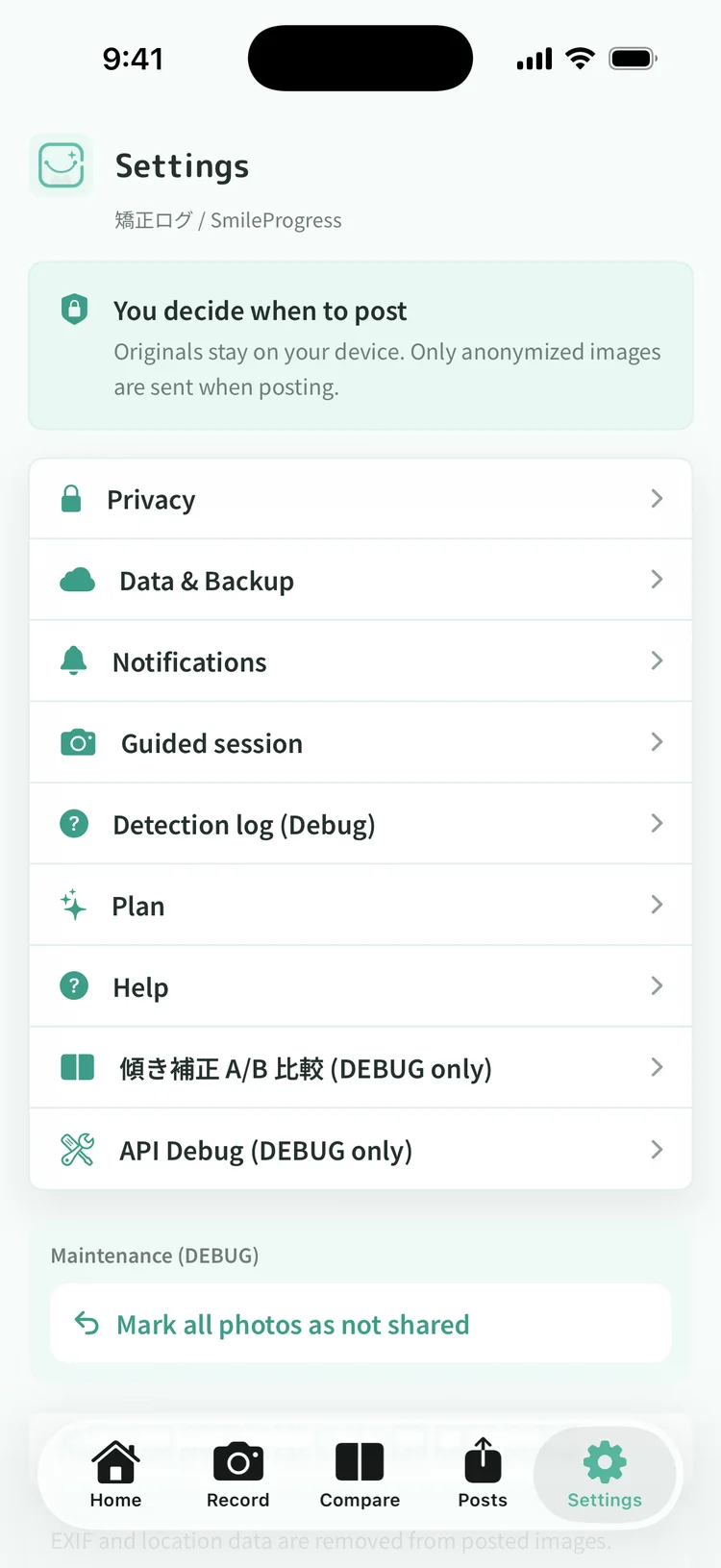
Data and backup can erase every photo and its metadata from the app at once. That cannot be undone. Posts you have already published are not affected, so delete those separately if you want them gone.
Delete it from your list of posts in the app. If you no longer can, for example after switching phones, use the deletion request form on the web. We respond within seven days.
App Download
The app brings together photo organization, comparison and the anonymization preview in a single flow.
This site uses cookies (Google Analytics) to analyze usage. Measurement happens only if you consent. Cookie Policy